Order (Multi Strategy)
This guide is for users with well-defined trading strategies, covering the following steps:
- Execute trading strategies
- Combine trading positions
- Calculate share quantities
- Place orders
Each step is explained in detail below.
This feature is in BETA
This feature is currently being used with over tens of millions in capital, but for first-time use, please execute during after-hours or pre-market to avoid unexpected errors during trading sessions.
1. Execute Trading Strategies
Before the next trading day opens, you need to run your strategies and obtain trading reports. Here are three approaches:
A. Use backtest.sim for backtesting
Users can write their own strategies following the Backtesting Tutorial and obtain reports through backtesting:
from finlab import backtest

# Write your strategies

report1 = backtest.sim(...)
report2 = backtest.sim(...)
B. Download reports from the platform
Users can select strategies from My Strategies on the platform, note the names, and download reports:
from finlab.portfolio import create_report_from_cloud

report1 = create_report_from_cloud('NAME_OF_STRATEGY1')
report2 = create_report_from_cloud('NAME_OF_STRATEGY2')
C. Directly set positions
Suitable for users who already hold positions and want to periodically rebalance:
from finlab.portfolio import create_multi_asset_report

report1 = create_multi_asset_report({'2330': 0.5, '1101': 0.5}, resample='Q')
report2 = create_multi_asset_report({'2330': 0.7, '1101': 0.3}, resample='M')
resample parameter indicates the rebalancing frequency. For example, Q means quarterly rebalancing.
2. Combine Trading Positions
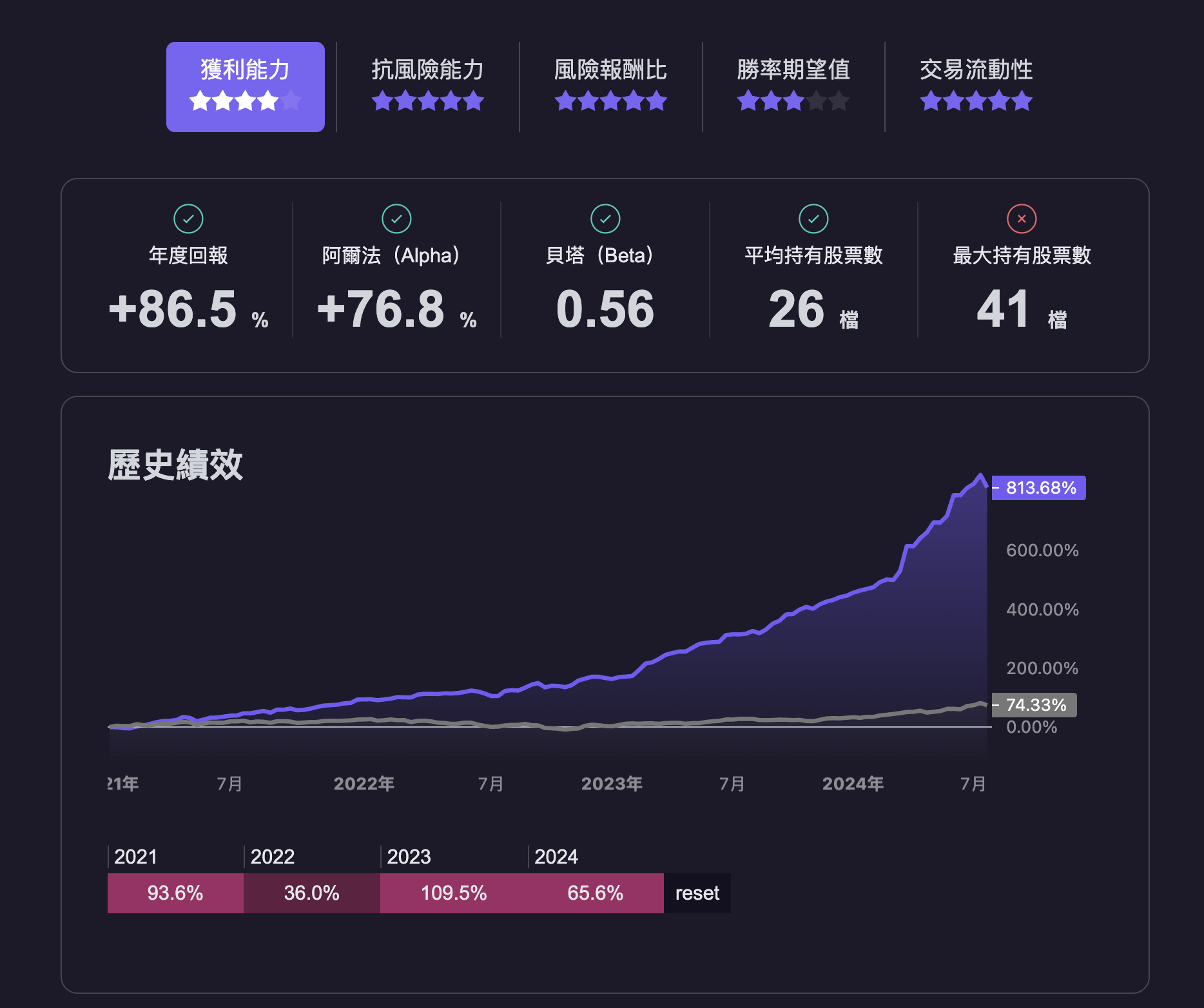
After obtaining reports from multiple strategies, you can combine positions and evaluate performance:
from finlab.portfolio import Portfolio
port = Portfolio({
    'strategy1': (report1, 0.5),
    'strategy2': (report2, 0.5)
})
port.display()
This will simulate the portfolio combination and calculate performance, as shown below:
3. Calculate Share Quantities
Next, calculate the number of lots for each stock. Using PortfolioSyncManager, you can:
- Determine whether positions need updating
- On rebalancing days, recalculate the number of lots for each stock
- After each trading day, check if stop-loss or take-profit needs to be triggered
- During rebalancing, ensure trading stays within the specified
total_balance
Create PortfolioSyncManager
Users can choose one of the following methods:
Update Holdings:
Choose different update methods based on your needs:
Estimate value 9633950

          quantity  price    weight  close_price    volume                    strategy            type
stock_id
1213          19.0  10.15  0.019055        10.15    69.948                       r2,r3  MARGIN_TRADING
1336           8.0  22.05  0.017430        22.05   270.865                    r5,r6,r7  MARGIN_TRADING
1441          12.0  14.70  0.017430        14.70    76.901                       r0,r8  MARGIN_TRADING
1468           8.0  14.60  0.011541        14.60    33.000                          r9  MARGIN_TRADING
1474           8.0  13.90  0.010987        13.90   113.962                          r1  MARGIN_TRADING
2496          15.0  73.50  0.108936        73.50    11.613     r0,r1,r2,r3,r4,r5,r8,r9  MARGIN_TRADING
3019           3.0  85.90  0.025463        85.90  5376.965                    r3,r4,r5  MARGIN_TRADING
3430           6.0  60.30  0.035749        60.30   300.173                 r4,r5,r6,r7  MARGIN_TRADING
3632          42.0  15.30  0.063494        15.30    15.637        r0,r1,r3,r4,r5,r6,r7  MARGIN_TRADING
4154          20.0  15.75  0.031125        15.75    57.116                 r4,r5,r6,r7  MARGIN_TRADING
4554           3.0  29.50  0.008745        29.50    43.018                          r8  MARGIN_TRADING
PortfolioSyncManager.update daily to ensure positions remain accurate.
PortfolioSyncManager.update Control Parameters
PortfolioSyncManager.update has the following parameters. Please read carefully to ensure your position updates are correct:
portfolio (Portfolio or Report)
The portfolio containing investment positions. This is the core data structure for stock synchronization, and all share quantity calculations reference this portfolio.
total_balance (float)
A float value representing total assets, including all cash, assets, and stocks combined.
rebalance_safety_weight (float)
The cash weight that ensures the total value of the new strategy portfolio does not exceed the original portfolio value when buying/selling at market prices. For example, if set to 20%, then 20% of sold assets will be retained as cash, and the rest will be used to purchase new assets. This helps manage investment risk and ensure liquidity. If using limit orders, this can be set to around 5%.
smooth_transition (bool)
Determines whether to use smooth transition for portfolio updates. When adding/removing strategies or updating weights, if set to True, the portfolio will not change immediately but will update at each strategy's next scheduled date. This avoids frequent trading, reduces transaction costs, and helps portfolio stability. Default is True.
force_override_difference (bool)
Determines whether to force override existing different positions. If it is not a rebalancing day and there is no stop-loss/take-profit trigger, the program will still verify whether current positions match simulated positions (they should theoretically match, but may differ due to delayed data registration, user forgetting to run the strategy, or running the strategy before data registration). If set to True, any detected differences will be forcibly adjusted according to the new strategy. Default is False to avoid unnecessary trading and potential risks.
These parameters are crucial for portfolio synchronization and rebalancing. Properly setting and understanding them helps investors achieve more effective asset management and risk control.
PortfolioSyncManager.update Case Study
The update function is an important tool for managing investment portfolios. It ensures the portfolio stays balanced and rebalances investments when necessary to follow strategy allocations. Here is a detailed explanation of how it works.
Steps
-
Identify strategies that need updating
- The function first checks which strategies need updating based on their next scheduled trading dates. If the next trading date has arrived or passed, or strategy weights have changed, an update is needed.
- It also considers whether smooth transition is enabled, meaning updates will only occur on the next scheduled trading date to avoid immediate changes.
-
Check current holdings
- The function checks the current stock holdings and confirms whether they match the strategy report. If there are discrepancies, warnings are logged and forced updates may occur.
-
Calculate asset value and liquid funds
- Total asset value: Sum of all current holding values.
- Liquid funds: Funds available from selling current positions of strategies due for rebalancing, plus remaining balance.
- Limited liquid funds: Capped to not exceed total_balance * sum of strategy weights.
- Safety funds: A percentage of liquid funds retained for stability (e.g., 20%).
- Investable funds: Liquid funds minus safety funds.
-
Update each strategy's holdings
- For each strategy needing update, funds are allocated based on strategy weight and investable funds.
- Old holdings are liquidated and new holdings created. Stocks appearing in both old and new are retained.
- Stocks triggering stop-loss/take-profit have positions set to zero without rebalancing the entire strategy.
-
Save updated portfolio
- Updated portfolio information is saved locally or to the cloud.
Example Scenario
- Initial setup: Portfolio with strategies A and B, each weighted 50%.
- Current value: Total NAV is $1,000,000. Strategy A = $300,000, Strategy B = $600,000. Strategy A is lower due to stop-loss liquidations; Strategy B is higher due to gains.
- Rebalancing condition: Strategy B has a scheduled rebalancing tomorrow; A does not.
Update process:
- Strategy B is identified for update.
- Liquid funds from Strategy B: $600,000 + $100,000 remaining = $700,000, capped at $500,000 (50% weight).
- Safety funds: $500,000 * 20% = $100,000.
- Investable funds: $500,000 - $100,000 = $400,000.
- Since idle funds (\(200,000) exceed safety funds (\)100,000), no safety reserve needed. Investable = $500,000.
- Strategy B's $600,000 holdings are liquidated and $500,000 is reinvested per Strategy B.
- Stop-loss/take-profit triggered stocks in Strategy A are set to zero without rebalancing B.
Adding/Removing Strategies
When using pm.update daily, you can pass different strategies and parameters. It will always update positions in the most reasonable way.
To switch strategies immediately without waiting for the next rebalancing date, set pm.update(..., smooth_transition=False).
Save Positions:
Save positions using the following methods:
Automation Script Design
First-time setup:
Then run daily:
# Initialize PortfolioSyncManager
pm = PortfolioSyncManager.from_local()

# Perform operations
# pm.update(...)

# Save results
pm.to_local()
4. Place Orders
Currently supports E.SUN Securities, Sinopac Securities, Masterlink Securities, and Fubon Securities trading systems. Set the credentials as environment variables for your chosen broker.
Choose your broker
- First, follow the config tutorial to obtain the config file.
- Then log in to the E.SUN Securities API to get the market data Token.
from finlab.online.esun_account import EsunAccount
import os
os.environ['ESUN_CONFIG_PATH'] = 'path to config.ini.example'
os.environ['ESUN_MARKET_API_KEY'] = 'E.SUN market API Token'
os.environ['ESUN_ACCOUNT_PASSWORD'] = 'E.SUN account password'
os.environ['ESUN_CERT_PASSWORD'] = 'E.SUN certificate password'

account = EsunAccount()
Legacy Fugle environment variables (still supported)
from finlab.online.fugle_account import FugleAccount
import os
os.environ['FUGLE_CONFIG_PATH'] = 'path to config.ini.example'
os.environ['FUGLE_MARKET_API_KEY'] = 'market API Token'
os.environ['FUGLE_ACCOUNT_PASSWORD'] = 'account password'
os.environ['FUGLE_CERT_PASSWORD'] = 'certificate password'

account = FugleAccount()
If you encounter error codes, check the E.SUN Securities documentation.
-
Please obtain the certificate first:
- Windows certificate download
- MacOS: Sinopac supports MacOS for trading but does not support certificate downloads on MacOS. Use a Windows machine first.
import os
from finlab.online.sinopac_account import SinopacAccount

os.environ['SHIOAJI_API_KEY'] = 'Sinopac API_KEY'
os.environ['SHIOAJI_SECRET_KEY'] = 'Sinopac SECRET_KEY'
os.environ['SHIOAJI_CERT_PERSON_ID']= 'National ID number'
os.environ['SHIOAJI_CERT_PATH']= 'Sinopac certificate path'
os.environ['SHIOAJI_CERT_PASSWORD'] = 'Sinopac certificate password'

account = SinopacAccount()
Refer to the Masterlink Securities tutorial:
import os
from finlab.online.masterlink_account import MasterlinkAccount

os.environ['MASTERLINK_NATIONAL_ID'] = 'National ID number'
os.environ['MASTERLINK_ACCOUNT'] = 'Trading account'
os.environ['MASTERLINK_ACCOUNT_PASS'] = 'Password'
os.environ['MASTERLINK_CERT_PATH'] = 'Masterlink certificate path'
os.environ['MASTERLINK_CERT_PASS'] = 'Masterlink certificate password'

account = MasterlinkAccount()
Setup complete!
Refer to the Fubon Securities tutorial:
import os
from finlab.online.fubon_account import FubonAccount

os.environ['FUBON_NATIONAL_ID'] = "A123456789"
os.environ['FUBON_ACCOUNT_PASS'] = "your_password"
os.environ['FUBON_CERT_PATH'] = "/path/to/cert.pfx"

account = FubonAccount()
Setup complete!
Batch Order Execution and Account Synchronization:
Other Operations
Update Limit Price
Cancel All Pending Orders
If the position contains "full-delivery stocks", "disposition stocks", or "alert stocks", you must pre-deposit funds at your brokerage account first.